Most problems with Factory Reset Chamberlain Garage Door Opener begin with a small ambiguity—a missing model number, a similar case, or an assumed setting. Resolve that ambiguity first and the rest becomes a much narrower task.
If your garage door opener stopped responding, lost connection after a power outage, or you want to remove old remotes and keypads, a factory reset of a Chamberlain garage door opener is often the fastest and cleanest solution.
In this guide, you will learn how to reset a Chamberlain garage door opener, including remotes, keypads, MyQ Wi-Fi settings, and access codes – step by step.
- Reset or Reprogram? Choose First
- The Working Sequence
- How to Factory Reset a Chamberlain Garage Door Opener
- Step-by-step factory reset
- How to Reset a Chamberlain Garage Door Opener After Power Outage
- How to Reset Chamberlain Garage Door Opener Remote
- How to Reset Chamberlain Garage Door Opener Keypad
- Reset keypad with known code
- Reset keypad without code
- How to Reset Chamberlain Garage Door Opener Code
- How to Reset Chamberlain Garage Door Opener WiFi (MyQ)
- The Reset Step That Is Easy to Miss
- When You Need to Reset a Chamberlain Garage Door Opener
- Common Reset Problems and Fixes
- Map the Controls Before Entering Setting Mode
- How to Reprogram My Chamberlain Garage Door Opener After Reset
- Safety Tips Before Resetting
- Author
Reset or Reprogram? Choose First
If you want a clean start, always choose a factory reset.
The Working Sequence
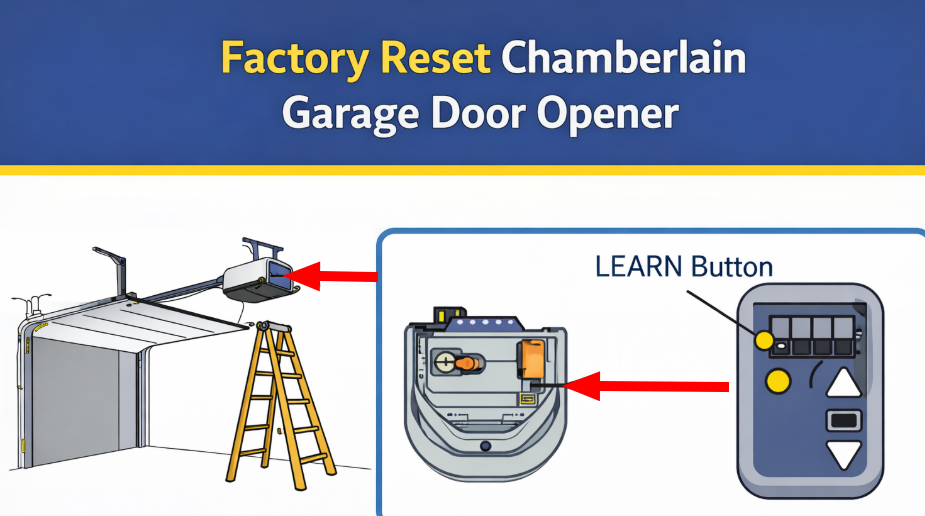
How to Factory Reset a Chamberlain Garage Door Opener
This method works for most Chamberlain models, including MyQ openers.
Step-by-step factory reset
- Locate the Learn button on the opener motor (usually under the light cover).
- Press and hold the Learn button for 6–10 seconds.
- Release the button when the LED turns off.
- All remotes, keypads, and codes are now erased.
This completes the factory reset Chamberlain garage door opener process.
How to Reset a Chamberlain Garage Door Opener After Power Outage
Power outages can desync remotes and MyQ.
- Unplug the opener for 60 seconds.
- Plug it back in and wait until the LED stabilizes.
- If the opener still does not respond, perform a factory reset.
- Reprogram remotes and keypads.
This method solves most issues related to how to reset Chamberlain garage door opener after power outage.
How to Reset Chamberlain Garage Door Opener Remote
If only the remote is not working:
- Press the Learn button once (do not hold).
- Press the remote button within 30 seconds.
- Wait for the LED to blink or click sound.
If that fails, perform a full reset first, then reprogram the remote.
How to Reset Chamberlain Garage Door Opener Keypad
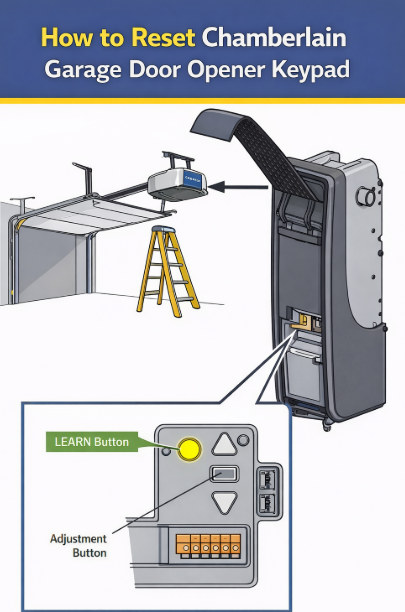
Reset keypad with known code
- Press and hold ENTER until lights turn off.
- Reprogram using the Learn button on the opener.
Reset keypad without code
If you forgot the PIN:
- Perform a factory reset on the opener.
- Reprogram the keypad as new.
This solves how to reset Chamberlain garage door opener keypad without code scenarios.
How to Reset Chamberlain Garage Door Opener Code
To reset access codes:
- Perform a factory reset (recommended)
- Or erase and reprogram keypad codes manually
A factory reset guarantees all old codes are removed.
How to Reset Chamberlain Garage Door Opener WiFi (MyQ)
If MyQ is not connecting:
- Hold the Learn button until the LED turns off.
- This clears Wi-Fi credentials.
- Open the MyQ app and set up the opener again.
This answers how to reset Chamberlain garage door opener WiFi and how to factory reset Chamberlain MyQ garage door opener.
The Reset Step That Is Easy to Miss
When You Need to Reset a Chamberlain Garage Door Opener
You should perform a reset if you notice one or more of these issues:
- Remote or keypad no longer works
- You moved into a new home and want to clear old codes
- Opener stopped working after a power outage
- MyQ app is not connecting
- Garage door opens or closes randomly
- You want to reprogram all devices from scratch
In these cases, a factory reset Chamberlain garage door opener process removes all stored remotes, keypads, and wireless settings.
Common Reset Problems and Fixes
Map the Controls Before Entering Setting Mode
How to Reprogram My Chamberlain Garage Door Opener After Reset
After resetting, you must reprogram:
- Remotes
- Keypads
- Vehicle HomeLink buttons
- MyQ app
Use the Learn button to add each device one by one.
Safety Tips Before Resetting
- Stand clear of the door
- Remove vehicles from the garage
- Reprogram only after reset is complete
- Never press buttons while the door is moving
Choose Factory Reset Chamberlain Garage Door Opener only if the strengths described here fit the way it will actually be used; a different use case can produce a different recommendation.
